
Nashville Computer Guru Top Tech Calls: Solutions for Your Most Common IT Challenges
Technology should make your life easier, not more frustrating. Over the years, I’ve helped thousands of clients navigate digital hurdles. Below, I’ve compiled a guide to the top technical issues I encounter and how you can solve them.
Support My Work: If these tips save you time or a service call, please consider a donation to help keep this resource running.
PayPal:
paypal.me/computerguru Cash App:
@southerntabithaVenmo:
Tabitha-Hawk-1
How to Escape “Password Hell”: A Guide to Recovery and Management
We’ve all been there: you’re locked out of Facebook, Gmail, or Yahoo, and the “Forgot Password” link leads you into a frustrating loop of recovery codes and old phone numbers.
As technology becomes more secure, it also becomes harder to “hack” your way back into your own life if you lose your credentials. If you can’t get in, a technician often can’t either—security is designed that way. If every computer nerd could get into any account at will, then it would be digital chaos. So keep in mind if you are locked out, there might not be a secret way back in,
Here is how to troubleshoot password issues across your devices and how to ensure you never face “Password Hell” again.
1. Troubleshooting Password Issues by Platform
Windows: The Microsoft Account Loop
Most modern PCs use a Microsoft Account to log in.
-
The Fix: If your password isn’t working, try logging in at
account.microsoft.com -
The PIN vs. Password: If your PIN stops working, look for the “Sign-in options” link on the login screen to try your full password instead.
Mac: Apple ID and FileVault
Apple is notoriously strict with security.
-
The Fix: If you forget your Mac login password, restart the computer. After a few failed attempts, you should see a prompt to Reset using your Apple ID.
-
Warning: If you have FileVault enabled and lose both your password and your “Recovery Key,” your data may be permanently unrecoverable. Always keep a physical copy of your FileVault Recovery Key in a safe.
Websites: The “Recovery Chain” Problem
The biggest time-sink in tech support is the “Recovery Chain.” You need a code to get into Facebook, but that code goes to a Gmail account you can’t access, which sends a code to an old Bellsouth email that has been deactivated.
-
The Fix: Start at the end of the chain. Recover your primary email account first. Once you have control of your email, every other website (Amazon, Adobe, etc.) becomes easier to reset.
- Avoid changing your phone number and be mindful of 2FA apps and make sure you import them to a new phone.
2. Advanced Troubleshooting Tips
-
Check Your Browser’s “Hidden” Vault: If your old computer still works but you can’t remember a password, check the browser’s built-in manager.
-
Chrome: Settings > Autofill > Password Manager.
-
Safari: Settings > Passwords.
-
Edge: Settings > Profiles > Passwords.
-
-
The 2FA Dead End: If you use Two-Factor Authentication (2FA) and change your phone number without updating your accounts, you could be permanently locked out.
-
Tip: Always generate and save “Backup Codes” provided by Google, Facebook, and Apple. These are one-time-use codes that bypass 2FA if you lose your phone.
-
-
Caps Lock & Keyboard Layout: It sounds simple, but check your Caps Lock and ensure your keyboard language hasn’t accidentally switched (e.g., from US to UK), which changes where symbols like
@or"are located.
3. The Solution: Use a Password Manager
The only way to truly escape Password Hell is to stop trying to remember them. I personally use and recommend Dashlane.
Why Use a Manager?
-
Unique Passwords: It generates “un-hackable” strings like
k9!P$2zz#Lm8so you don’t use “DogName123” for every site. -
Automatic Sync: It works on your phone, your laptop, and your tablet simultaneously.
-
Breach Alerts: Dashlane monitors the dark web. If a site like LinkedIn or Yahoo gets hacked, it notifies you immediately to change your password.
-
Zero-Knowledge Security: Not even the company can see your passwords.
Simplify your life: Sign up for Dashlane here:
https://www.dashlane.com/cs/pzgpTMwsxInq
Summary Checklist for a Secure Digital Life
| Task | Frequency | Why? |
| Update Recovery Phone | Whenever you switch numbers | Prevents 2FA lockouts. |
| Audit Saved Passwords | Every 6 months | Removes access for old, unused apps. |
| Download Backup Codes | Once per account | Your “Emergency Glass” to break if you lose your phone. |
| Use a Manager | Daily | Saves hours of “Forgot Password” frustration. |
Final Note: If you are setting up a new computer, expect to spend at least an hour just on passwords. Having a manager like Dashlane or iCloud Keychain ready can turn those two hours of frustration into ten minutes of clicking “Auto-fill.”
Note: As a technician, I am limited by security protocols and laws. If you cannot access your recovery options, I cannot “hack” into the account for you. Even if I could, committing felonies for you is not happening. Resetting is the only path—save yourself the stress by using a manager today.
HP Printer Not Printing or Scanning?
It is the most common call for any IT professional: “My HP printer won’t print” or “I can print, but I can’t scan.” Whether you’re using a classic OfficeJet 8600, 8610, 8620, or a newer model like the 6968, these machines are notorious for losing their connection to Windows.
The truth is that most printers sold at big-box stores for $100–$200 are “home-grade” devices. When you push them to handle office-level workloads, the software often glitches. Before you throw your printer out the window, follow this comprehensive troubleshooting guide to get back online.
1. The “Clean Slate” Solution (Most Effective)
Often, Windows 10 or 11 will automatically install a “Basic Driver.” This allows for simple printing but frequently breaks the scanning functionality. To fix this, you need the Full Feature Software.
-
Uninstall Everything: Go to your Control Panel > Programs and Features and uninstall every instance of HP software.
-
Clear the Queue: Open “Devices and Printers,” right-click your printer, and select Remove Device.
-
Download Fresh: Go to
123.hp.com -
The “Reboot Sandwich”: Restart your computer after uninstalling, and restart it again after the new installation.
2. Connection & Network Troubleshooting
If your computer can’t “see” the printer, the driver won’t matter.
-
Check the Bandwidth: Many older printers (OfficeJet 6500/8600) only support 2.4GHz Wi-Fi. If your laptop is on the 5GHz band of the same router, they may struggle to communicate. Try putting both on the same band.
-
The Static IP Trick: Printers often lose connection because the router changes their IP address. Find your printer’s IP address (usually in the “Network” settings on the printer screen), type that IP into your web browser, and look for “Network” > “IPv4”. Change the setting from DHCP to Manual (Static).
-
Swap the Connection: If the Wi-Fi card in the printer has failed, try a USB cable. If the USB port is loose, try switching to Wi-Fi.
3. Advanced Troubleshooting Tips
If the standard reinstall didn’t work, try these “pro” steps:
-
Restart the Print Spooler: Press
Windows Key + R, typeservices.msc, find Print Spooler, right-click it, and select Restart. -
Run HP Print and Scan Doctor: HP provides a free diagnostic tool called
HP Print and Scan Doctor -
Check for Windows Updates: Sometimes a Windows “security update” breaks the communication between the PC and the scanner. Ensure Windows is fully updated to receive the latest compatibility patches.
-
Disable “SNMP” Status: If your printer shows as “Offline” even when it’s on, go to Printer Properties > Ports > Configure Port and uncheck SNMP Status Enabled.
When to Give Up: The “Cost of Repair” Rule
As a rule of thumb, most consumer inkjet printers are not worth repairing. If you spend more than two hours of labor (or pay a professional) to fix a $120 printer, you’ve already spent the cost of a new machine.
Better Alternatives for Heavy Users:
-
For High-Volume Printing: Look into Brother Laser Printers. They are less “fussy” than inkjets and the toner doesn’t dry out.
-
For High-Volume Scanning: If you scan 20+ pages a day, a “flatbed” printer scanner will eventually fail you. Invest in a dedicated document scanner like a Fujitsu ScanSnap or a Xerox DocuMate. They are designed for speed and reliability.
-
For Office Use: If you have 5 or more people printing to one machine, a $150 OfficeJet will likely fail within a year. Look into leasing commercial-grade equipment made for business-level duty cycles. Companies such as Nova Copy and RJ Young cater to high use business level printing.
Quick Checklist Before You Call Support:
-
Is the printer on the exact same Wi-Fi network as the PC?
-
Did you download the Full Feature Driver (not just the App)?
-
Have you tried a USB cable just to rule out a Wi-Fi card failure?
-
Is there a paper jam or a low ink error? (Some printers refuse to scan if they are out of yellow ink!)
When is it time to buy a new printer?
Most home “all-in-one” units cost between $100–$200. These are designed for light home use. If you are in an office environment with multiple people printing to one $120 machine, the hardware will likely fail.
Pro Tip: It is often cheaper to replace a budget printer than to pay for two hours of professional labor to fix a hardware malfunction. If you scan or print in high volumes, consider investing in a dedicated commercial-grade scanner (such as Fujitsu or Xerox) or leasing a business machine.
Professional Summary
In technology, you truly get what you pay for. While big-box stores offer affordable entry-level devices, they often lack the longevity of professional-grade gear. My goal is to help you spend less time troubleshooting and more time being productive.
Need one-on-one help? Contact me today!
How to Fix Common Outlook Email Problems: Troubleshooting Login and Startup Issues
When your email stops working in Microsoft Outlook, it’s easy to feel like you’re stuck in a game of “he-said, she-said.” Email providers (like Comcast or Yahoo) often blame the software, while Microsoft blames the provider.
In reality, Outlook is just a “window” to your email. If the view is blurry, it’s usually a connection or credential issue. Before diving into deep fixes, always check your email via a web browser (Gmail.com, Yahoo.com, etc.). If it works there but not in Outlook, the problem is the connection between the two.
1. Outlook “Enter Password” Pop-up Loop
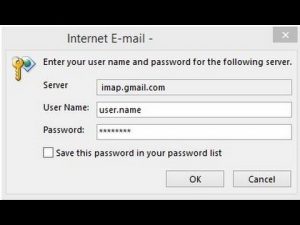
The most common frustration is Outlook repeatedly asking for your username and password, even when you know they are correct.
-
The Comcast “Wait” Rule: If you use Xfinity/Comcast, this is often a temporary server glitch. It frequently resolves itself within 24 hours. If it doesn’t, reset your password on the Xfinity website and update it in Outlook.
-
The “Delete and Re-add” Fix: If the settings are scrambled, the cleanest fix is to remove the account and add it back.
-
Pro Tip: Do this through the Windows Control Panel. Search for “Mail”, click Email Accounts, and remove the problematic address. Then, select New to re-add it using the latest IMAP/Exchange settings.
-
-
Yahoo, AT&T, and Bellsouth “Secure Mail Keys”: These providers now require an App Password or Secure Mail Key. Your regular login password will not work in Outlook. You must generate a unique 16-character code from your account security settings online and paste that into the Outlook password field.
 2. Outlook Won’t Open (Stuck in Memory)
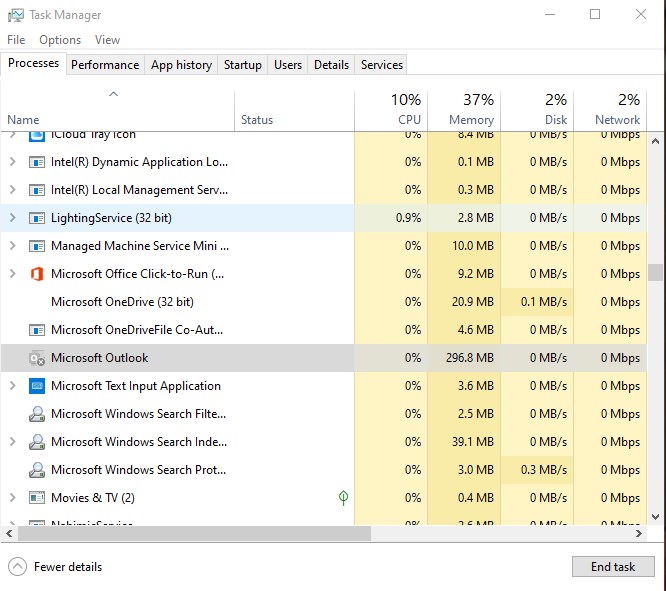
Sometimes you click the Outlook icon and nothing happens. This usually means the program “ghosted”—it closed visually, but the process is still running in the background.
The Quick Fix:
-
Press Ctrl + Shift + Esc to open the Task Manager.
-
Click the Details tab (or “Processes” in newer versions of Windows).
-
Find Microsoft Outlook.exe
-
Right-click it and select End Task.
-
Relaunch Outlook; it should open immediately.
3. Additional Troubleshooting Tips
If the steps above don’t solve the issue, try these advanced recovery methods:
Run Outlook in Safe Mode
If Outlook crashes on startup, a faulty “Add-in” might be the culprit.
-
Press Windows Key + R, type
outlook /safe, and hit Enter. -
If it opens fine, go to File > Options > Add-ins and disable third-party tools (like antivirus scanners or old toolbars) one by one to find the offender.
Repair Your Outlook Profile
A corrupted profile is a common reason for sync errors.
-
Go to File > Account Settings > Account Settings.
-
Select your email account and click the Repair button.
-
Follow the prompts and restart Outlook.
Check for “Work Offline” Mode
It sounds simple, but it happens to the best of us. Look at the bottom status bar of Outlook. If it says “Work Offline” or “Disconnected,” go to the Send/Receive tab and click the Work Offline button to toggle it back to “Connected.”
Repair the Office Installation
If Outlook is glitching across the board, the software files themselves might be damaged.
-
Open Settings > Apps > Installed Apps.
-
Find Microsoft Office (or Microsoft 365).
-
Click Modify and choose Online Repair. This will refresh all your Office files without deleting your emails.
4. Old Software, if you have Office 2016 or below
The older the software gets, the more glitchy it becomes and the more challenging it is to keep it working. Updating to the latest version can solve many issues espcially with Outlook not accepting passwords.
Summary Checklist for Email Success
| Issue | Primary Solution |
| Password Loop | Use an App Password (Yahoo/AT&T) or wait 24 hours (Comcast). |
| Outlook Won’t Load | Kill the process in Task Manager. |
| Crashing on Start | Launch in Safe Mode and disable Add-ins. |
| Emails Not Sending | Check if Work Offline is accidentally enabled. |
Final Note on Yahoo: If you cannot generate an app password, Yahoo may be pushing you toward a “Yahoo Mail Plus” subscription. If you’re unwilling to pay, your best bet is to use the Windows Mail app or check your mail directly at Yahoo.com.
Ultimate Guide to Email Server Settings: Outlook, Gmail, AT&T, and Xfinity
Setting up your email on a desktop client like Microsoft Outlook, Apple Mail, or a mobile device requires specific server settings. This guide provides the most up-to-date IMAP and POP3 configurations to ensure your inbox stays synced and secure.
POP vs. IMAP: Which should you choose?
-
IMAP (Recommended): Best for users with multiple devices (phone, tablet, PC). It leaves the original email on the server, syncing your folders and “read” status across all devices.
-
POP3: Downloads the email to one specific device and typically removes it from the server. This can lead to missing emails if you try to check your account from a second device.
AT&T, BellSouth, and Yahoo Email Settings
These settings apply to all AT&T “family” domains, including @bellsouth.net, @sbcglobal.net, @att.net, @currently.com, and @prodigy.net.
| Setting | IMAP (Recommended) | POP3 |
| Inbound Server | imap.mail.att.net | inbound.att.net |
| Inbound Port | 993 (SSL Required) | 995 (SSL Required) |
| Outbound Server | smtp.mail.att.net | outbound.att.net |
| Outbound Port | 465 or 587 (SSL/TLS) | 465 (SSL Required) |
Important Note: AT&T now requires a Secure Mail Key rather than your standard password to work with Outlook or older mail apps. You must generate this 16-character key inside your AT&T online account profile.
Xfinity / Comcast Email Settings
While Xfinity recommends using their web browser portal, you can use Outlook by following these manual configurations.
IMAP Configuration (Preferred)
-
Incoming Server:
imap.comcast.net(Port 993 with SSL) -
Outgoing Server:
smtp.comcast.net(Port 587 with STARTTLS/TLS) -
Authentication: Ensure “My outgoing server (SMTP) requires authentication” is checked.
POP3 Configuration
-
Incoming Server:
pop3.comcast.net(Port 995 with SSL) -
Note: Port 110 is no longer supported for security reasons.
Google Gmail Settings
To use Gmail with a third-party app, you must first enable IMAP/POP inside your Gmail settings on the web.
-
Login to Gmail.com > Settings > See all settings.
-
Navigate to the Forwarding and POP/IMAP tab.
-
Select Enable IMAP and click Save Changes.
Gmail Server Details
| Protocol | Incoming Server | Port (SSL) | Outgoing Server | Port (TLS/SSL) |
| IMAP | imap.gmail.com |
993 | smtp.gmail.com |
587 (TLS) or 465 (SSL) |
| POP3 | pop.gmail.com |
995 | smtp.gmail.com |
587 (TLS) or 465 (SSL) |
Pro Tip: If you have Two-Factor Authentication (2FA) enabled on your Google account, you cannot use your regular password. You must generate an App Password from your Google Security settings to log in via Outlook.
Common Technical Support Numbers
If you are experiencing a complete service outage, contact your Internet Service Provider (ISP) directly:
-
Comcast/Xfinity Support: 1-800-XFINITY (1-800-934-6489) | Nashville Local: 615-244-5900
-
AT&T / BellSouth Internet Support: 1-888-321-2375
-
Google/Gmail: Online help only at
support.google.com/mail
Need Professional Assistance?
If you’ve tried these settings and are still having trouble syncing your folders or sending mail, I can help remotely or on-site.
Support My Work:
-
PayPal:
paypal.me/computerguru -
Cash App:
@southerntabitha -
Venmo:
Tabitha-Hawk-1
How to Fix iCloud and Outlook Syncing Issues: A Troubleshooting Guide
Is your iCloud and Outlook syncing constantly breaking? You aren’t alone. Many users find that their contacts, calendars, and emails stop syncing every few months, usually following a Windows, Office, or iCloud update.
While Outlook 2016 and older versions account for roughly 80% of these glitches, even newer versions can run into “handshake” errors between Apple and Microsoft software.
Below is the definitive guide to getting your sync back on track, including the “Golden Fix” and advanced troubleshooting for stubborn cases.
The “Golden Fix”: Resetting the iCloud Connection
If your sync stopped working after an update, this 5-step reset is the most effective solution.
-
Sign Out & Clean Up: Close Outlook. Open the iCloud Control Panel, click Sign Out, and choose “Delete from PC” when asked about contacts and calendars (don’t worry, they stay safe in the cloud).
-
Uninstall iCloud: Use the Windows Control Panel to uninstall the iCloud app, then restart your computer.
-
Clean Install: Download the latest version of
iCloud for Windows -
Re-Sync: Open the iCloud app and sign in with your Apple ID. Check the box for Mail, Contacts, Calendars, and Tasks with Outlook. Follow the setup prompts (usually about 7 steps).
-
Launch Outlook: Open Outlook and wait a few minutes for the initial sync to populate your data.
Additional Troubleshooting Tips
If the reinstallation didn’t work, try these deeper fixes:
1. Check the iCloud Outlook Add-in
Sometimes the “bridge” between the two programs gets disabled.
-
Outlook 2010 & Newer: Go to File > Options > Add-ins. Look at “Active Application Add-ins.” If iCloud isn’t there, go to the “Manage” dropdown at the bottom, select Disabled Items, click Go, and enable the iCloud Add-in.
-
Outlook 2007: Go to Tools > Trust Center > Add-ins and check the Active list.
2. Verify the Default Data File
iCloud cannot sync properly if it is set as your primary data file.
-
Go to File > Info > Account Settings > Data Files.
-
Ensure your main email account (or a local .pst file) is set as the Default. If iCloud is the default, select another account and click Set as Default.
3. Use App-Specific Passwords
If you have Two-Factor Authentication enabled on your Apple ID (which is highly recommended), Outlook may reject your standard password.
-
Sign in to your
Apple ID management page -
Generate an App-Specific Password.
-
Use this unique code instead of your regular password when prompted by Outlook or the iCloud app.
4. The “Dell Pre-install” Problem
If you have a Dell computer with Office pre-installed (often the “Microsoft Store” version), iCloud frequently fails to “see” Outlook. This has been a common issue since 2019 with Dell computers that had office prepurchased and loaded with computer.
-
The Fix: Uninstall the pre-installed version of Office. Go to
Office.com
Key Differences to Remember
When syncing iCloud with Outlook, some features behave differently:
-
Notes: These are stored in a specific mail folder, not a separate app.
-
Reminders: You must enter tasks into the iCloud section of Outlook Tasks; otherwise, they won’t push to your iPhone/iPad.
-
Signatures: These are local to the device and will not sync across platforms.
Quick Checklist for Success
| Checkpoint | Action |
| System Status | Check Apple’s |
| Time & Date | Ensure your PC time matches your actual time zone exactly. |
| Updates | Ensure Windows is fully updated to avoid security certificate errors. |
Still having trouble? Check that you aren’t signed into different Apple IDs on your phone and your PC, as this is a common cause for “phantom” sync issue
How to Identify and Avoid Tech Support Scams
Tech support scams are a multi-billion dollar industry designed to exploit fear and urgency. These scammers often impersonate well-known brands like Microsoft, Apple, Google, or Amazon to gain remote access to your computer and financial information.
Common Tactics Used by Scammers
1. The “Infection” Pop-Up
You may encounter a full-screen browser alert claiming your computer has a “Zeus Virus,” “Critical Security Breach,” or “System Failure.” These windows often play a loud alarm sound or use JavaScript to prevent you from clicking “X” to close the tab.
-
The Reality: This is just a website designed to look like a system error. Your computer is not actually infected. It is a scare tactic to get you to call the phone number on the screen.
2. Unsolicited Phone Calls
A “technician” may call you claiming they have received error reports from your PC. They may even know your name or address from public records.
-
The Reality: Microsoft, Apple, and your ISP never monitor individual computers in real-time to call users about errors. If you receive an unsolicited call from “Tech Support,” it is 100% a scam.
3. Fake Search Results
Scammers pay for “Sponsored” ads on Google or Bing. When you search for “HP Printer Support” or “Gmail Login Help,” the top result might be a fraudulent call center instead of the official brand.
What to Do if You See a Scam Pop-Up
-
Do Not Call the Number: Never dial the phone number displayed on a suspicious pop-up.
-
Force Close Your Browser: * Windows: Press
Ctrl + Shift + Escto open Task Manager, right-click your browser (Chrome, Edge, etc.), and select End Task.-
Mac: Press
Option + Command + Escand select Force Quit.
-
-
Clear Your History: Once you reopen your browser, do not “Restore Tabs.” Clear your cache and history to remove the malicious link.
Critical Advice: If You Already Let Them In
If you allowed a scammer to remotely access your computer (using tools like AnyDesk, TeamViewer, or LogMeIn), take these steps immediately:
-
Disconnect the Internet: Turn off your Wi-Fi or unplug your Ethernet cable to stop their access.
-
Contact Your Bank: If you provided credit card info or logged into your bank while they were watching, call your bank’s fraud department immediately to freeze your accounts.
-
Change Passwords: From a different device, change the passwords for your email, banking, and primary accounts.
-
Get a Professional Clean-Up: Scammers often install “backdoors” (hidden software) that allows them to return later. Have a trusted technician (like myself) scan for malware and verify your system’s integrity.
Support My Mission to Keep You Safe
Educating the community on digital safety is my priority. If this information helped you avoid a costly scam, please consider a donation to support my work.
-
PayPal:
paypal.me/computerguru -
Cash App:
@southerntabitha -
Venmo:
Tabitha-Hawk-1
Pro Tip: Genuine tech support will never ask to be paid in Gift Cards, Bitcoin, or Wire Transfers. If they ask for payment via a Target or Apple gift card, hang up immediately.
Why Is My Computer So Slow? Myths vs. Reality
If your PC takes forever to boot or “freezes” while you’re typing, you aren’t alone. However, most users look for solutions in the wrong places. Let’s debunk the common myths and look at what actually dictates your computer’s speed.
Common Myths About Slow Computers
Many people try “cleaning” their computer to speed it up, but these actions rarely impact performance:
-
Myth 1: “I need to delete files or photos.” Unless your drive is 95% full, deleting files won’t change your speed. Having 90% free space vs. 50% free space makes zero difference in how fast a program opens.
-
Myth 2: “I need to uninstall programs.” While removing “bloatware” that runs in the background helps, simply having a program installed on your drive does not slow down the processor.
-
Myth 3: “I need to defrag.” Modern versions of Windows (10 and 11) handle optimization automatically. If you have a modern Solid State Drive (SSD), you should never defrag it.
The Real Culprit: The Hard Drive Bottleneck
If your computer takes 15 minutes to reach the desktop, the issue is almost always hardware hardware, specifically your storage drive.
Most older PCs (and some budget new ones) use a Mechanical Hard Disk Drive (HDD). These rely on a physical spinning platter. In my experience, Seagate drives are the most common brand I see failing or underperforming. If your drive is struggling to read data, no amount of software “cleaning” will fix it.
Symptoms of a Failing or Slow Hard Drive:
-
100% Disk Usage: You open Task Manager (Ctrl+Shift+Esc) and see the “Disk” column at 100%, even though you aren’t doing anything.
-
Input Delay: You type a sentence, but the letters don’t appear on the screen for several seconds.
-
“Not Responding” Errors: Programs frequently hang or turn white/transparent while loading.
-
Constant Activity Light: The small LED light on your computer case stays solid instead of flickering.
What Actually Works: The SSD Upgrade
The single most effective way to make an old computer feel brand new is upgrading from a mechanical HDD to a Solid State Drive (SSD).
An SSD has no moving parts and is roughly 10 to 20 times faster than a traditional hard drive.
-
Boot times drop from minutes to seconds.
-
Updates install in a fraction of the time.
-
General browsing becomes snappy and responsive.
Tech Tip: If your CPU and Memory (RAM) usage look low in Task Manager but your Disk usage is high, an SSD upgrade is the “silver bullet” for your performance issues. It is the most cost-effective way to extend the life of your computer by 3–5 years.
Let’s Get Your Speed Back
Don’t waste hours deleting photos or running “PC Cleaner” scams. If you’re tired of waiting on your technology, I can help diagnose your hardware and perform an SSD clone to keep all your data while increasing your speed exponentially.
Wifi Problems
Wifi makes for many calls but solutions are not as common. Wifi is complex. I encourage you to read my article about Wifi problems.